PrestaShop allows you to assign your customers to groups in order to personalize their shopping experience.
To access it: Catalog > Products.
Why create a discount for a group of customers?
Because your clients are essential to your business, it is important to take care of them. Allowing a group of clients to benefit from an exclusive discount is useful to reward their loyalty, and even to create a tailored loyalty program!
The ability to create a discount for these particular clients helps you strengthen your ties with your clientele. Therefore, you must configure client groups above all else. You can create as many customer groups as you wish and assign as many customers to them as you desire.
How can one create a discount on a product for a customer group?
PrestaShop provides you with the opportunity to customize your discounts and ensure that a customer group can benefit from a discount on certain products.
In the 'Specific Prices' section of your product sheet, select the group that will benefit from a discount, and then click on 'Save.'
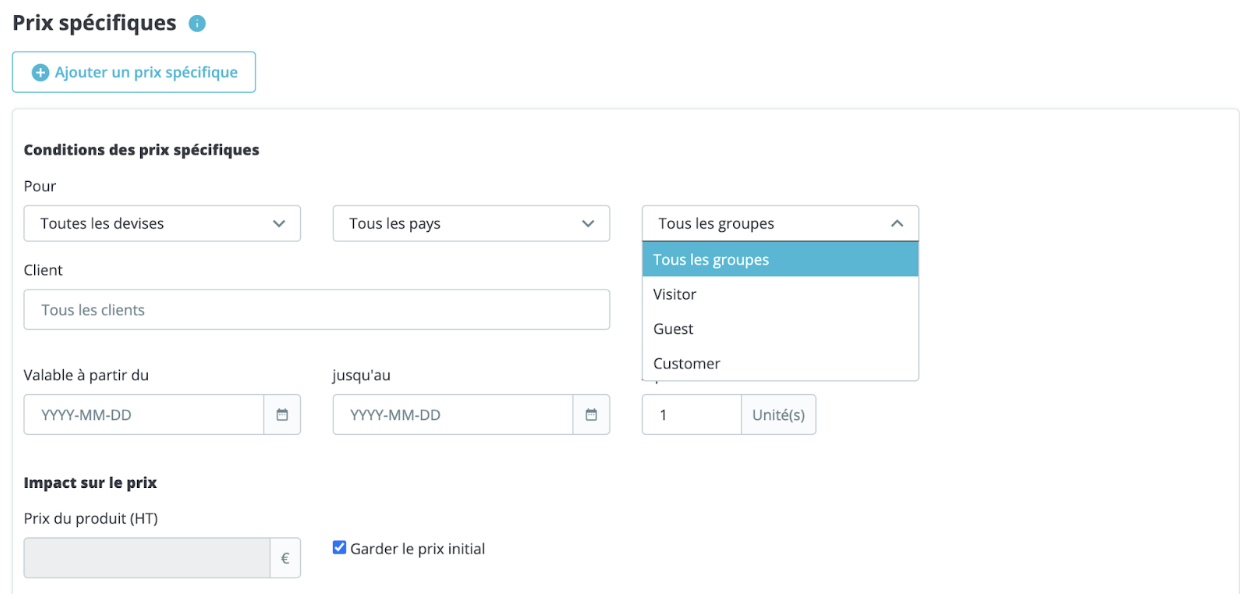
The discount you wish to apply will work for all products in your store, and for the members of this group.
How can one create a discount on a category for a group of customers?
You can customize your discounts and ensure that a group of customers can benefit from a discount on an entire category. Go to the Catalog > Discounts page in the back office and, from the "Catalog Price Rules" tab, click on the "Add a Catalog Price Rule" button at the top right to display the following creation form:
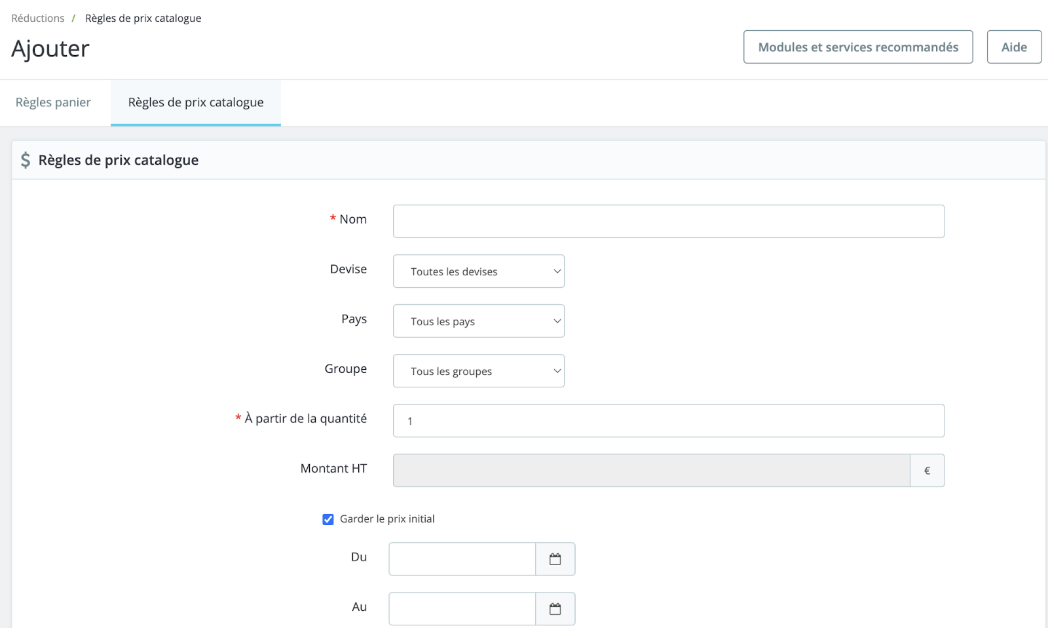
- Complete the form to determine the discount and define the group of customers who will be eligible to benefit from it.
- Configure your discount and its duration.
- Save the form to make this discount available.
- Click on the button 'Add a group of conditions' at the bottom left of the form. You may choose to limit your promotion to the following elements:
- Categories
- Brands
- Suppliers
- Attributes
- Characteristics
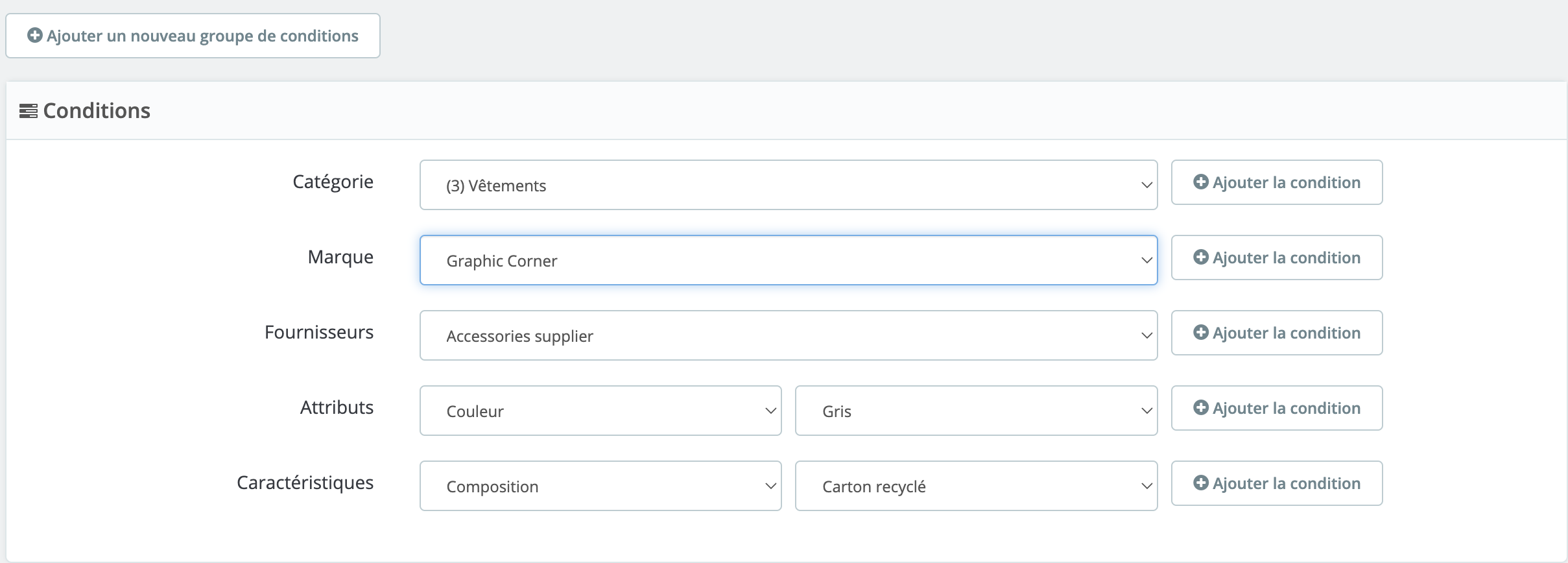
Once you have selected the items that your promotion will apply to, click on "Add Condition." Of course, you can mix these categories together: for example, create a promotion on men's clothing in gray linen.