Adding a new currency to your PrestaShop store is very beneficial for the international development of your store. Discover how to do it!
To access it: International > Localization > Currencies
Why add a new currency?
By default, your PrestaShop store only includes a single currency: that of your country, specified during the installation of your store.
Adding new currencies allows your customers located abroad to view the prices in your store in their own currency.
How to add a new currency?
The "Currencies" section allows you to manage the currencies present in your PrestaShop store. You can add them in two ways: by creating one manually or by using localization packs.
Add a currency manually.
Click on "Add a currency" to open the currency creation form.
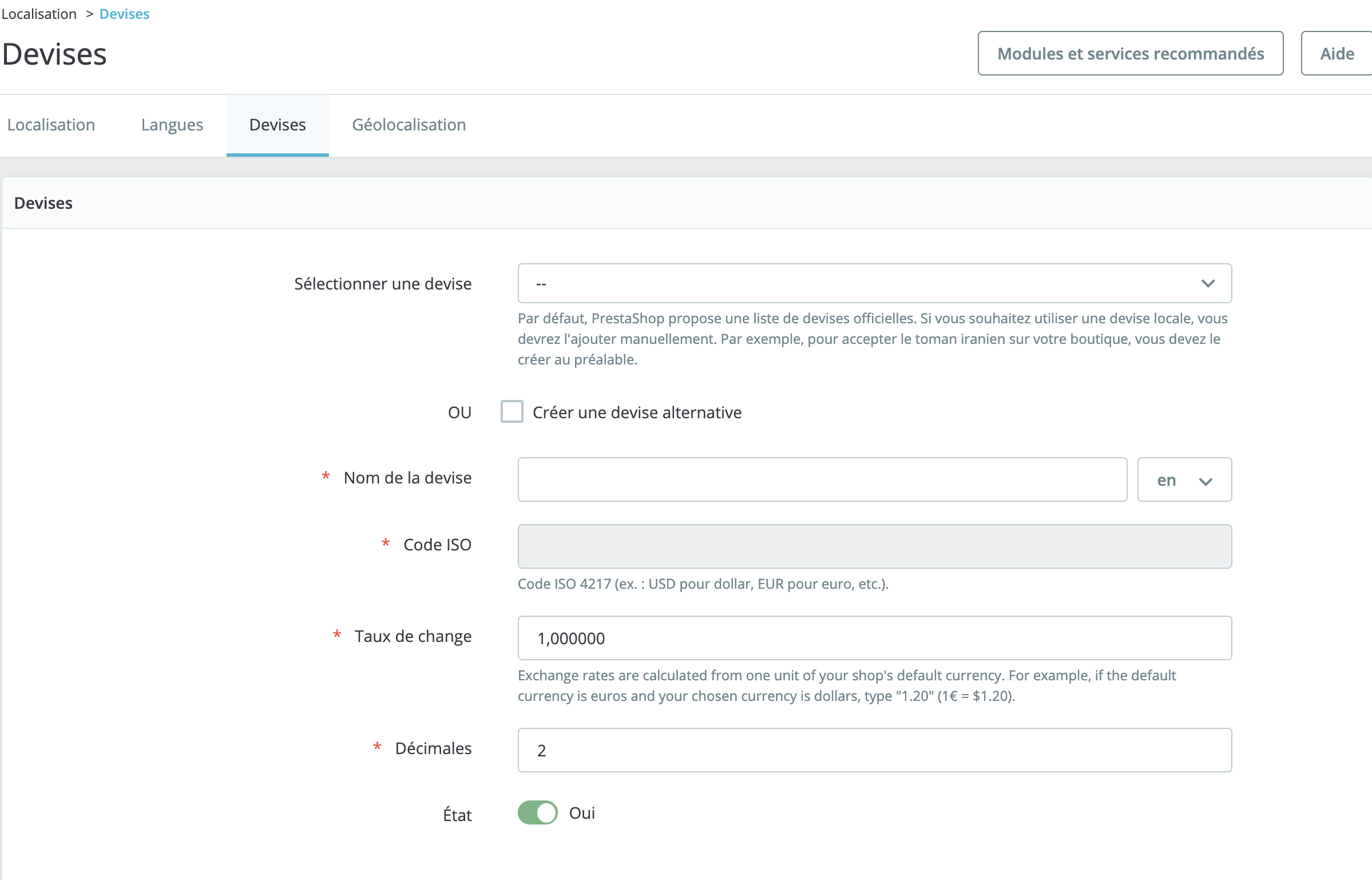
Select a currency from the dropdown list. If you wish to add a local currency that is not listed, PrestaShop offers you the option to create it. In this case, you must fill in the following fields:
- Currency name: name this currency in all necessary languages.
- ISO code: add the ISO 4217 standard, which is an international standard defining the codes for the representation of currencies used worldwide. For example, the ISO code for the euro is "EUR." Here you can find the complete list of these codes.
- Exchange rate: indicate the exchange rate of your currency against the euro. You can find the official exchange rates on the Banque de France website.
- Decimals: please specify the number of decimal places you wish to display in your store.
- Status: to activate your new currency.
Add a currency from a localization pack.
You can also add a new currency by downloading the localization pack associated with the currency you wish to download. For example, if you wish to add the Algerian dinar to your store, download the "Algeria" pack. Once your localization pack has been imported:
- Go to the "Currencies" tab on the International > Localization page.
- Select the currency you wish to install.
- Set its exchange rate. This option is particularly useful if the currency in question is highly volatile.
- Click on the toggle button in the "Enabled" column to bring your new currency online.
If you wish to delete it, click on the three vertical dots to the right of the activation button and then select "Delete."