Languages are fundamental for your PrestaShop store: they enable you to expand the reach of your store and to attract new customers internationally.
To access it: International > Localization
Why add a new language?
Each language has its own subtleties, wordplays, and expressions that do not translate literally. An optimal translation allows you to create a stronger connection with your clients and to abolish the geographical and cultural barriers that may separate you.
We recommend that you do not settle for Google Translate, which overlooks many linguistic subtleties, but rather engage the services of a professional translator.
How do I add a new language?
The "Languages" section allows you to manage the languages present in your PrestaShop store. You can add them in two ways: by creating one manually or by using localization packs.
Add a language manually.
Click on "Add a language" to open the form for creating a new language:
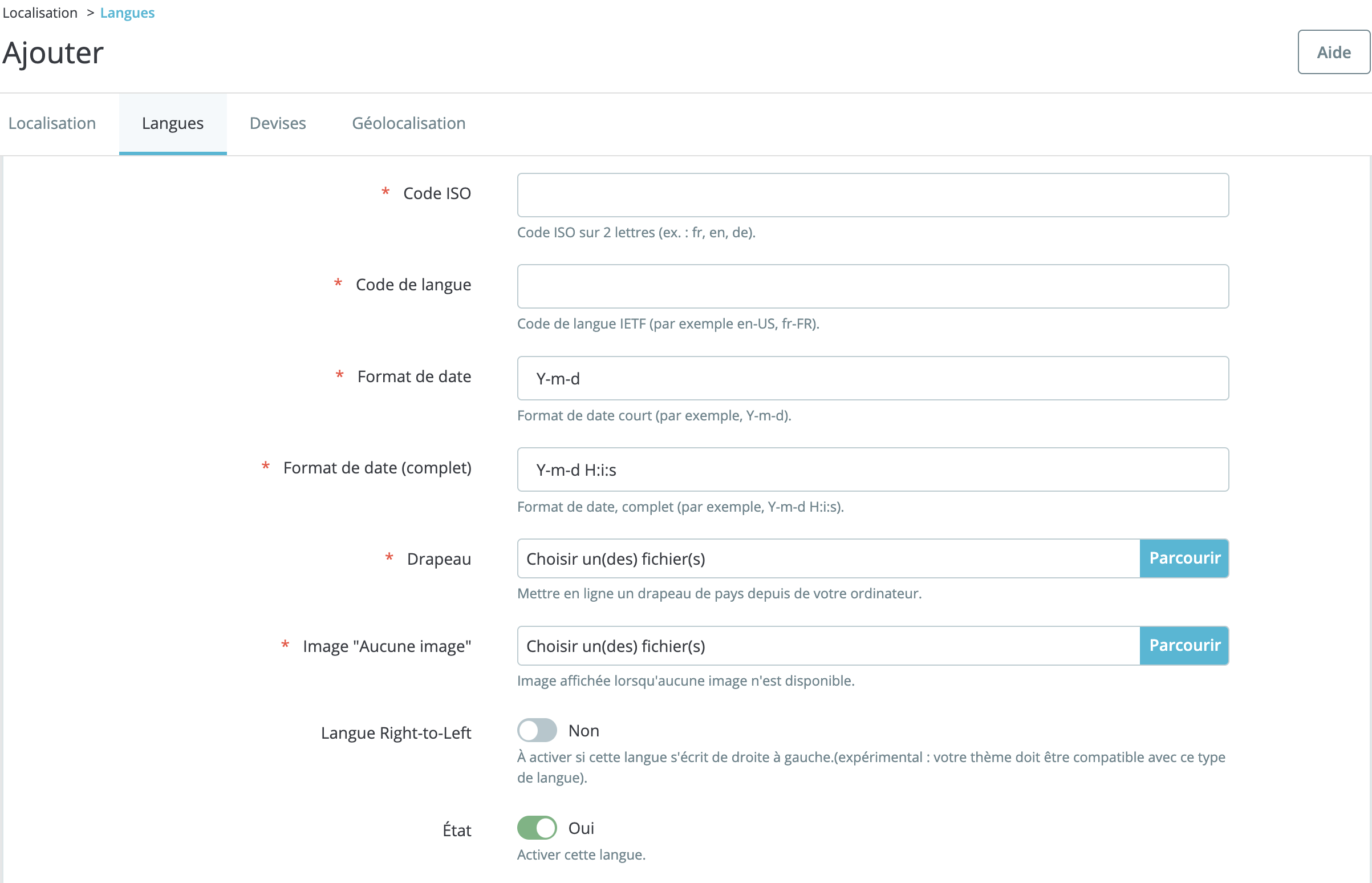
- ISO code: please provide the ISO code for your language. It is a two-letter code used to identify a language. For example, "FR" for French or "TR" for Turkish.
- Language code: please insert the IETF language code for the language you wish to add. The IETF language identification tags (where the acronym stands for the Internet Engineering Task Force) are derived from a standardized code that allows for the assignment of structured and hierarchical tags to identify languages. Here is the list of these codes.
- Date format: to determine a short date format. For example: Y-m-d for year-month-day.
- Full date format: insert a long date format.
- Flag: insert the flag of the country of the language you are importing.
- Image 'No image': the image that will be displayed in your store when no image is available for a product. We advise you to translate 'No image is available' into the language of the target country.
- Right-to-left language: certain languages, such as Hebrew or Arabic, are read from right to left rather than from left to right. Activate this toggle switch if your language is read from right to left, but ensure that your theme is compatible with this type of language.
- State: click on this toggle switch to activate this language.
Add a language from a localization pack.
To add a new language to PrestaShop, you can also do so by using localization packs. The import of a localization pack indeed allows you to activate the language or languages available from that localization pack and thus benefit from the translation of the basic elements of your store.
On the other hand, you will need to take care of the translation of the following elements yourself:
- Product sheets
- Categories
- Brands
- CMS Pages
- SEO Elements (title tags, description, etc.)
- Home page content