The 'Price' tab of the product sheet allows you to configure your prices in detail.
To access it: Catalogue > Products.
The 'Price' tab is a distinct section of your product sheet. Indeed, this tab contains numerous fields that influence one another based on the calculation of taxes. Here is how it appears:
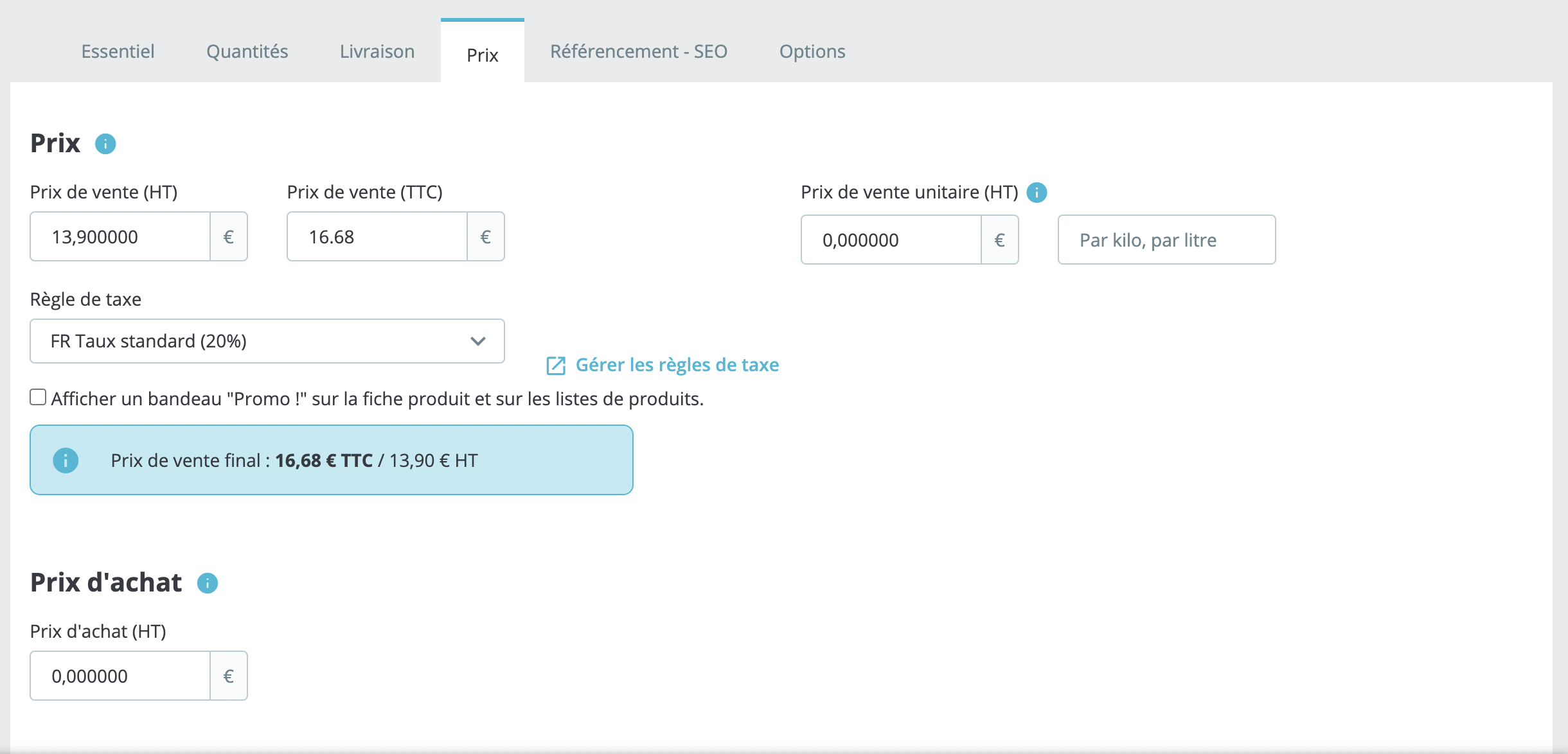
How to fill in the 'Price' section?
Filling in this section will allow you to precisely understand the impact of taxes on your products.
- Selling price (excluding tax): refers to the price of your product before the application of taxes.
- Selling price (including tax): refers to the price of your product once taxes are included. Please complete this field and then select the tax rule to apply so that the selling price excluding tax is calculated automatically. The reverse operation is also possible.
- Tax rule: refers to the tax applicable to your product. Choose one from the different rates you have established.
|
💡 To create new tax rates, click on the "Manage tax rules" button located to the right of the "Tax rule" field. Refer to our article to learn how to set up tax rules. |
- Unit sale price (excluding tax): refers to the price of your product per unit. Some legislations require that the unit price of products be displayed. For example, if you sell a pack of 6 cans, you must fill in this field with the price of one can and indicate "per can" in the second.
How to fill in the "Purchase Price" section?
The field "Purchase Price Excluding Tax" refers to the wholesale price (your factory price) that corresponds to how much the product cost you. By comparing it to your selling price, you will easily determine your margin.
How to fill in the section "Specific Prices"?
The section "Specific Prices" allows you to adjust the final price of a product based on various parameters: the quantity purchased by a customer, their potential membership in a group, their country, etc.
This feature allows for the utmost precision in calculating your prices. To determine the criteria for price allocation as well as the nature of the discount, please refer to this article.
How to complete the "Priority Management" section?
This section serves to determine the behavior of PrestaShop if a customer is subject to multiple specific prices.
Specifying priorities allows you to decide which specific pricing rule will be applied first. For this product, determine the order of the following criteria: country, customer group, currency, and store.
These four fields are not mandatory: you may choose to fill in the fields by marking "country - currency" if you wish to prioritize only one country and one currency, for example.
If you wish for these priorities to apply to all products in your catalog, check the box "Apply to all products."