PrestaShop allows you to define your carrier preferences to best align the parameters of your deliveries. Follow the guide!
To access it: Delivery > Preferences
The delivery preferences interface is presented as follows:
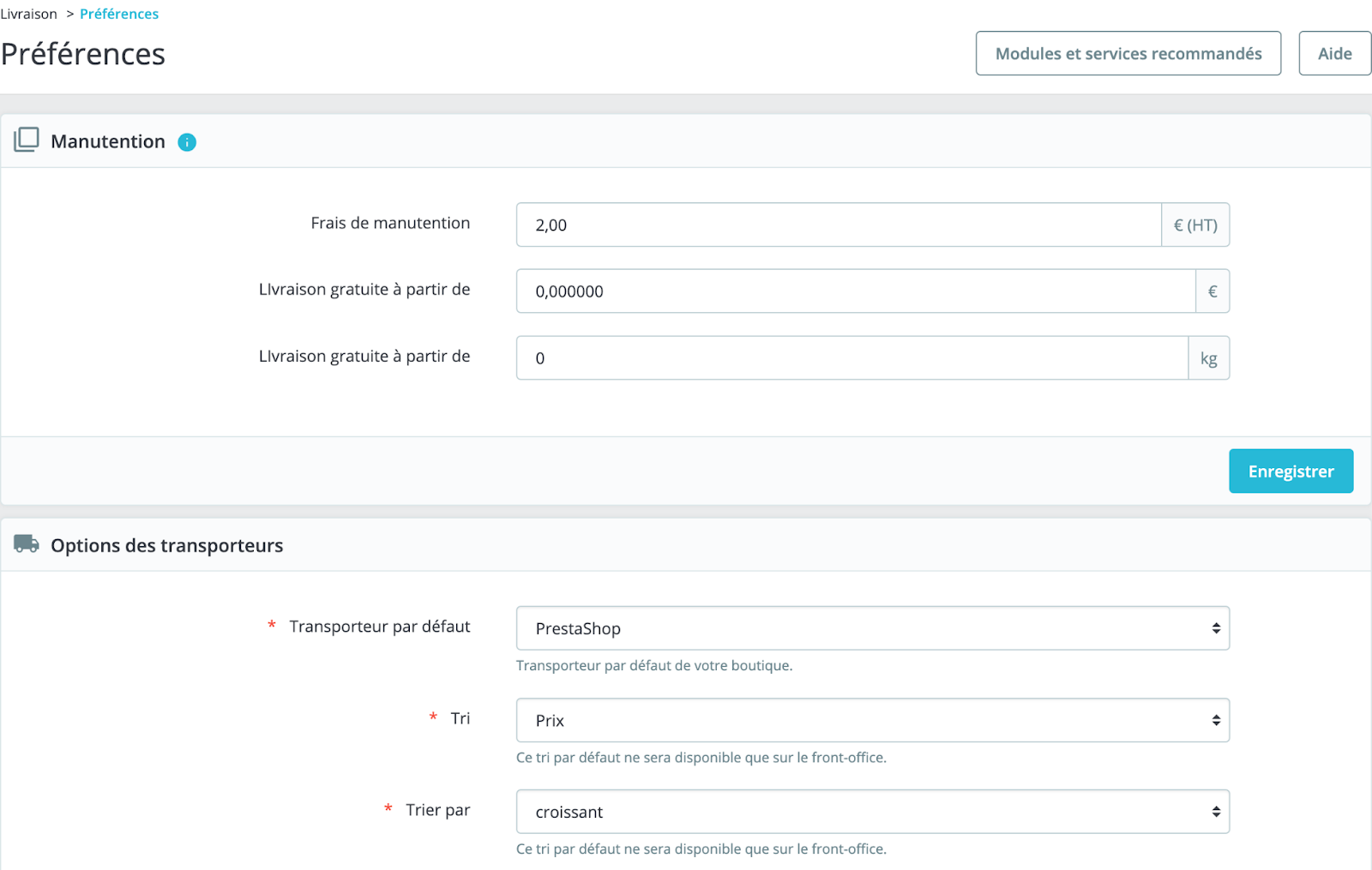
How to configure handling?
Handling fees (not to be confused with shipping fees) represent the cost associated with retrievingpackages, their packaging, and their shipping. The handling section allows for the definition of the following elements:
- Handling fees: enter the handling fees per order excluding tax, which will be added to the total price of the order. If your handling fees are zero, enter €0.
- Free delivery from: these two fields allow you to specify a price or weight from which customers will benefit from free delivery, based on a certain amount or weight, according to your preferences. These two fields are optional.
How to configure the carrier options?
The carrier options are used to define a default carrier for your store, as well as to determine which carriers will appear first on your site.
-
Default carrier: specify the carrier you wish to prioritize for your customers. This box contains several options:
- Best price: to prioritize the cheapest carriers. Attention: if you offer in-store pickup, this option will be considered the cheapest and will therefore be prioritized by PrestaShop.
- Best grade: to prioritize the fastest carriers based on carrier ratings.
- MyCarrier: this option should not be selected if your store is online. Indeed, MyCarrier is the default carrier example of PrestaShop that should not be used in production as it was designed solely to serve as an example. The same applies to "PrestaShop" which also appears in the list.
- Sorting: to define the order of the carrier options presented to customers during their order. You can choose to sort the list either based on shipping costs or their position in your list of carriers.
- Sort by: to indicate the sorting order of the carriers. You have the choice between "Ascending" and "Descending."
Thus, if the settings are set to "Price" and "Descending," then the carriers will be displayed from the most expensive to the least expensive. Similarly, if the settings are set to "Position" and "Ascending," then the carriers will be displayed from the one at the bottom of the list of carriers proposed to the client, to the one at the top position.
Click on "Save" to put your carrier preferences online!