PrestaShop allows you to add and configure your carriers in order to offer your customers a wide range of delivery options. Here is how to do it!
To access it: Shipping > Carriers
Click on the "Create a Carrier" button located at the top right of the page to access the following carrier creation form:
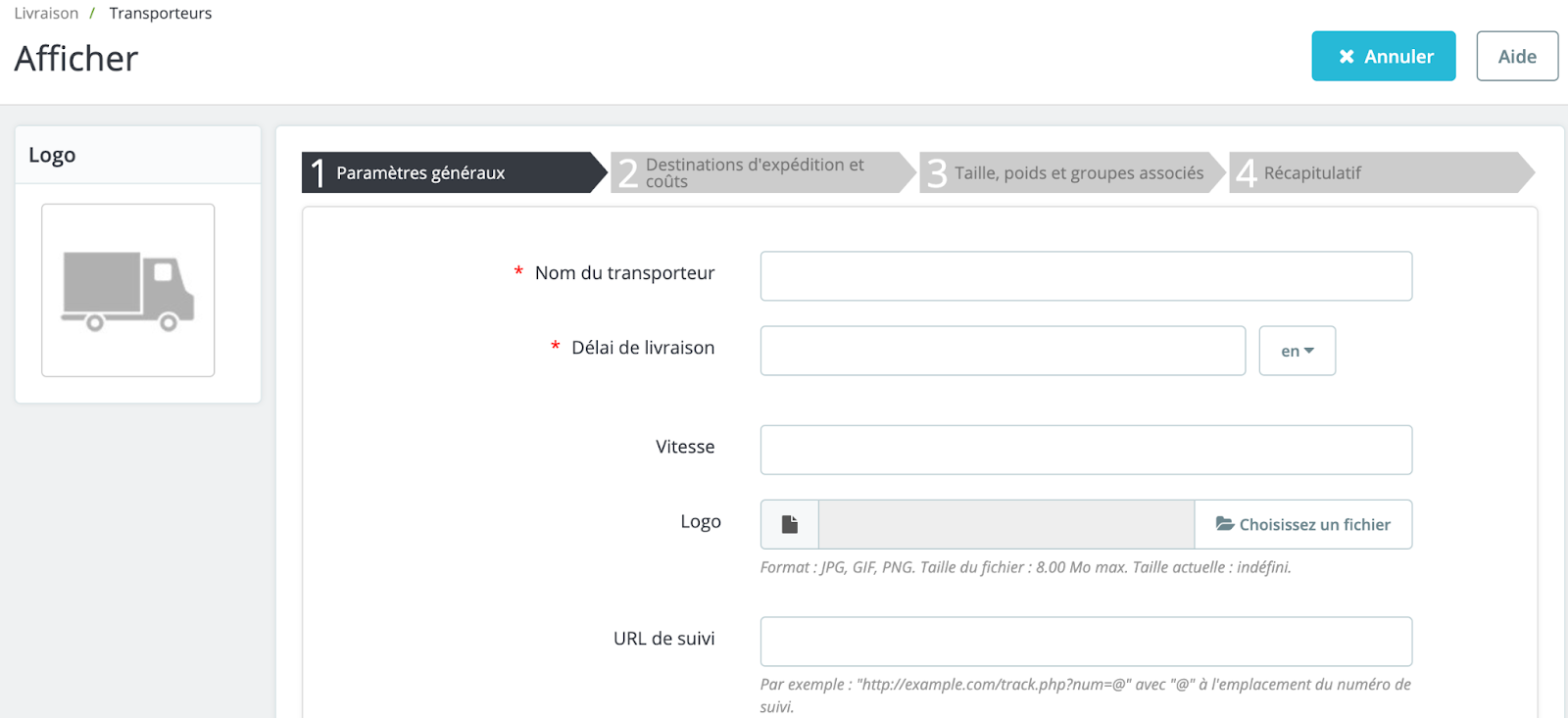
The creation of a new carrier takes place in four stages. We will assist you in each of these stages.
Add a new carrier: general settings
The first step requires the provision of the following elements:
- Carrier name: the official name of your carrier. If you have multiple PrestaShop carriers for the delivery services of the same carrier (in the case where one of your carriers offers a special service for bulky items, for example), you will be able to differentiate them by name.
| 💡 You can add a description of the service to the name. For example, "PrestaLivraison – 500 kg and above" could indicate that this carrier is reserved for products weighing more than 500 kilograms. |
- Delivery time: Add here the estimated time required for the carrier to deliver your product. This information is displayed during the order, when the delivery option is chosen by the customer. It is very important because it allows your customers to make the best choice of carrier based on the time they are willing to wait before being delivered.
| 💡 Customers are often willing to pay more to receive a package faster. |
- Speed: The "Speed" setting allows you to rate the carrier, from 0 (very slow) to 9 (very fast). This rating is then used to compare carriers based on their speed, and help customers choose the one they prefer. This field is optional.
- Logo: the presence of a logo is useful for customers to better identify the carrier. It will appear during the customer's order. This field is optional.
- Tracking URL: if your carrier provides one, this field must be filled with the tracking address provided by your carrier. For example, the French postal service, La Poste, offers the following address: https://www.laposte.fr/outils/suivre-vos-envois. When the customer selects their carrier, they will receive the address you entered in this field, and will only need to provide their tracking number on this page to access information about their package.
Click on "Next" at the bottom right of the screen to proceed to the second step.
Add a new carrier: shipping destinations and costs.
The second step of configuration is as follows:
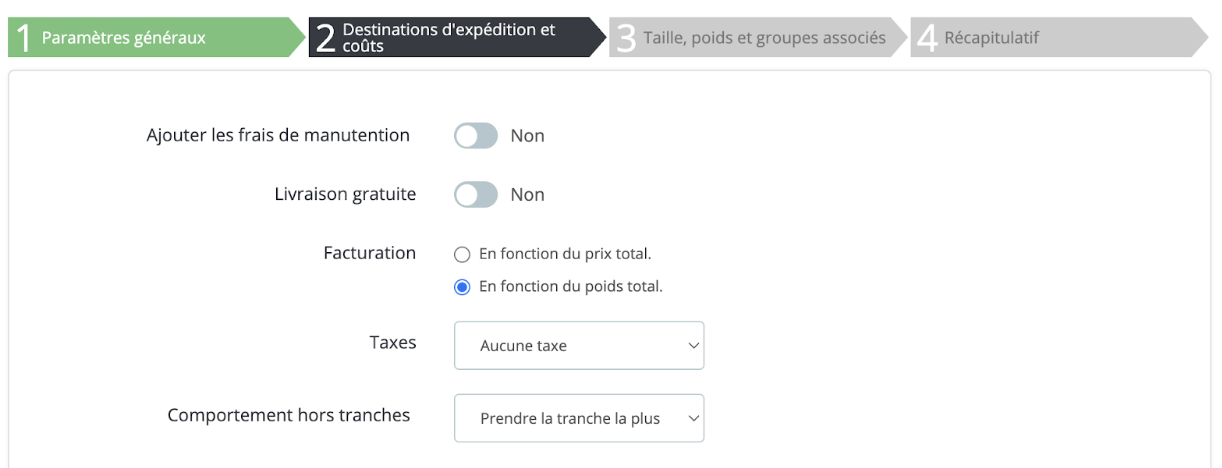
- Add handling fees: adds or removes handling fees from the carrier's price.
- Free delivery: if this option is enabled, you will not be able to specify a delivery price. On the contrary, if this option is disabled, you will be able to modify the brackets and costs by country in the form below.
- Billing: at the time of billing the customer for transport, you can choose between two behaviors: based on the total price (the billing will then depend on the total price of the order) or based on weight (the billing will then depend on the total weight of the order).
- Tax: insert the tax required by the carrier. To learn everything about creating taxes, click here.
-
Behavior outside of brackets: a bracket is a range in which a specific price applies (for example: delivery at €3.99 for products weighing between 1 and 2 kilograms). In the event that the selected carrier does not have a shipping cost in place for the required area or weight, you may specify how PrestaShop should respond. You have two options:
- Select the highest tier: PrestaShop will take the most expensive tier and apply its conditions.
- Disable the carrier: PrestaShop will not offer this carrier, as it is unlikely to deliver this order.
How to configure the delivery time slots?
The configuration of delivery time slots is crucial, as PrestaShop requires this information to present the customer with the carriers capable of delivering their order.
Indeed, depending on the total price or the total weight of the order, certain carriers will not be available while others will only be available for specific values. You must therefore fill in these ranges very precisely, preferably following the documentation of each carrier.
PrestaShop allows you to build price or weight ranges here (depending on your selection in the "Range Selection" option above), one range at a time, by applying your prices for each area to each range.
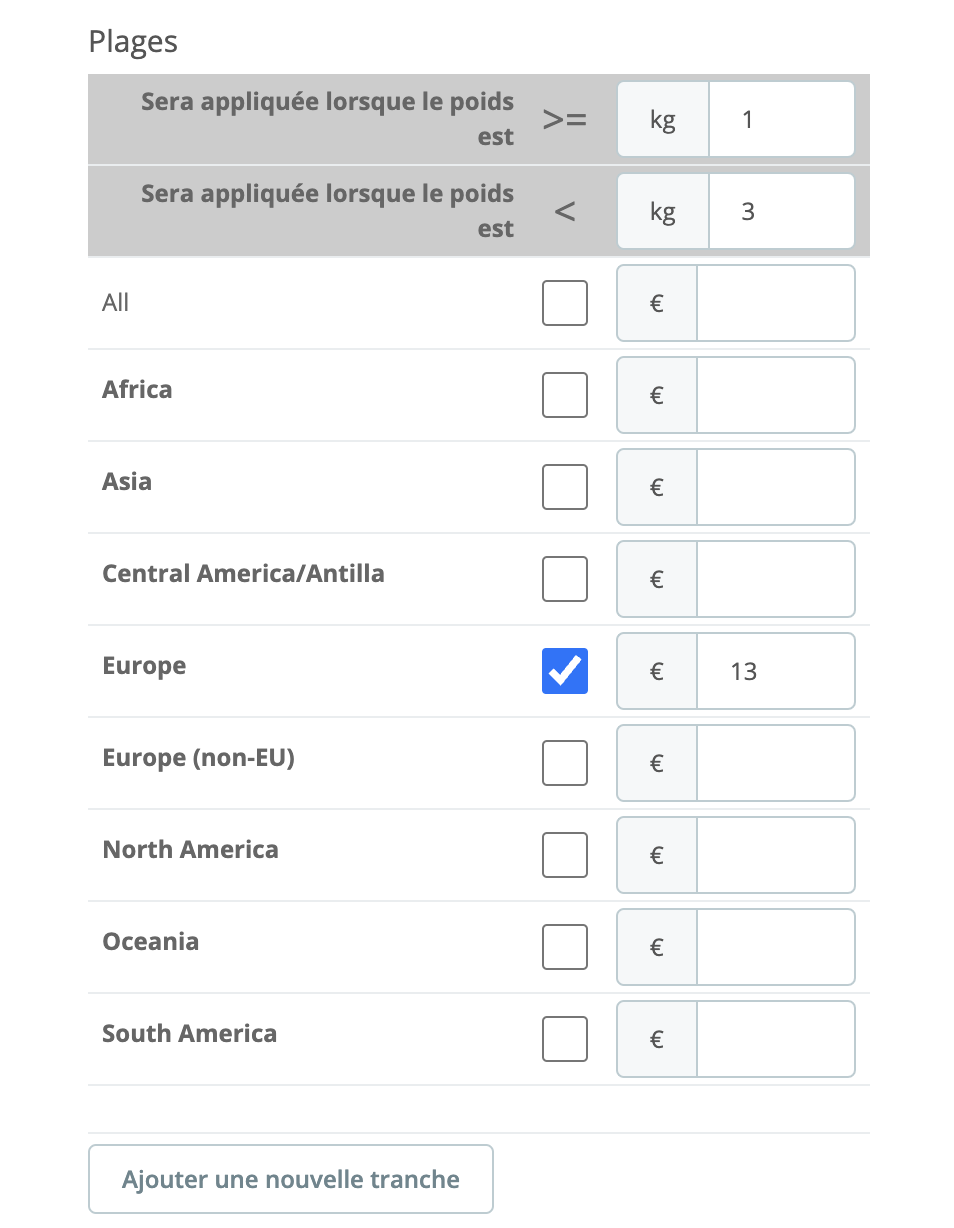
How to create a new range?
- Specify the lower and upper weight limits of the range you are creating.
- Specify the area of your range. If the carrier does not deliver in this geographical area, please leave the box unchecked.
- Please indicate the price of your segment.
- Click on "Add a new segment."
You may create as many segments as you wish. Once all the segments have been created, click on "Next" to proceed to the third step of configuring your new carrier.
Add a new carrier: size, weight, and associated groups.
The third step is presented as follows:
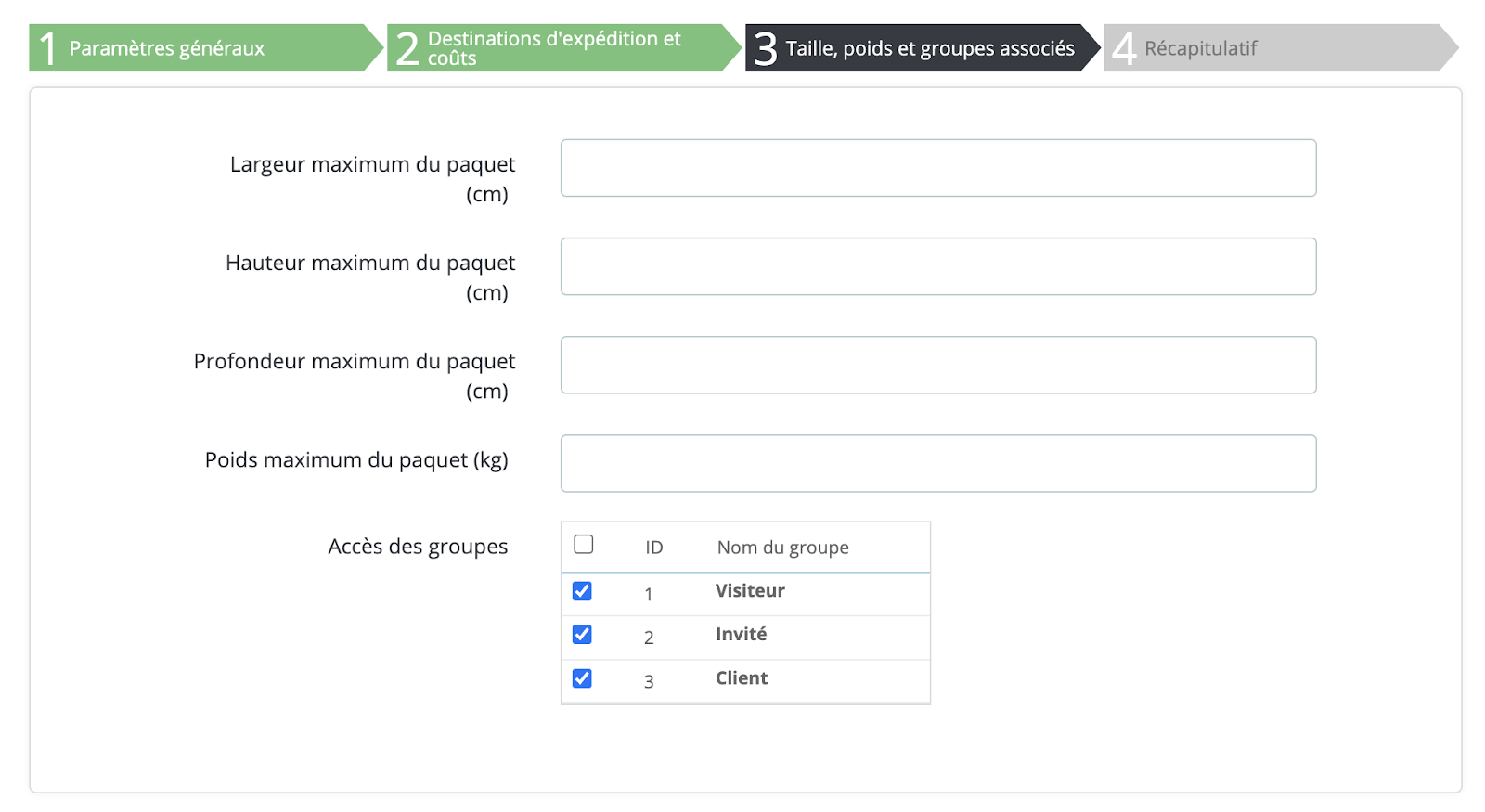
- Height/Width/Depth/Maximum weight of the package: these fields allow you to specify the maximum dimensions of the packages supported by your carrier. If you do not wish to provide this information, please leave these four fields blank.
- Group access: to grant access to this carrier only to members of a specific group.
Click on "Next" to proceed to the fourth and final step.
Add a new carrier: summary.
This final step allows you to preview the summary of the settings configured for this carrier.
| 💡 If you wish to modify certain settings, you can return to the previous sections by clicking on the "Previous" button. |
You can save this carrier as a draft and return to it later to finalize its configuration. In this case, disable it using the "Enabled" toggle button at the bottom of the page. Click on the "Finish" button to save your settings and create your new carrier.