Creating a well-structured import file is essential for the smooth operation of your store. Let us discover together how to proceed!
To access it: Advanced settings > Import
What is an import file?
PrestaShop allows you to import multiple data files. Customers, categories, products: all of this data can be easily imported into PrestaShop using a text file in a CSV ("Comma-Separated Values") format, with the associated file extension .csv.
How to create your import file?
However, it is preferable to use a spreadsheet and then save your work in CSV format. In comparison to a text editor, a spreadsheet will allow you to work more quickly and visually.
You can use the paid software Microsoft Excel or the open-source software OpenOffice.org. More modern and often updated, the LibreOffice software is also an interesting alternative.
Here is an example of a file ready for import, here for a product list:

We advise you to use the example files provided by PrestaShop to import your data. Download them in Advanced Settings > Import.
Building your data.
The first line of your file is used to designate your columns. Please note that:
- The price column uses the default currency of your store.
- Categories are indicated using their existing identifiers (therefore, you must import them first), and are separated by commas.
- The web address of the images must be an absolute link.
- In other words, you must use the address that the browser needs to call to display the image. For example, http://www.myprestashop/images/productXXX.jpg - prefer UTF-8 data encoding. Otherwise, use ISO-8859-1 and validate the option "file encoded in ISO-8859-1."
| 💡 We recommend using the semicolon (;) as a field separator. If your text data (product descriptions and others) contains semicolons, please consider removing them. |
How to import your file?
Once you have all your data in CSV format, you can import the file into your back office using the form on the Advanced Settings > Import page.
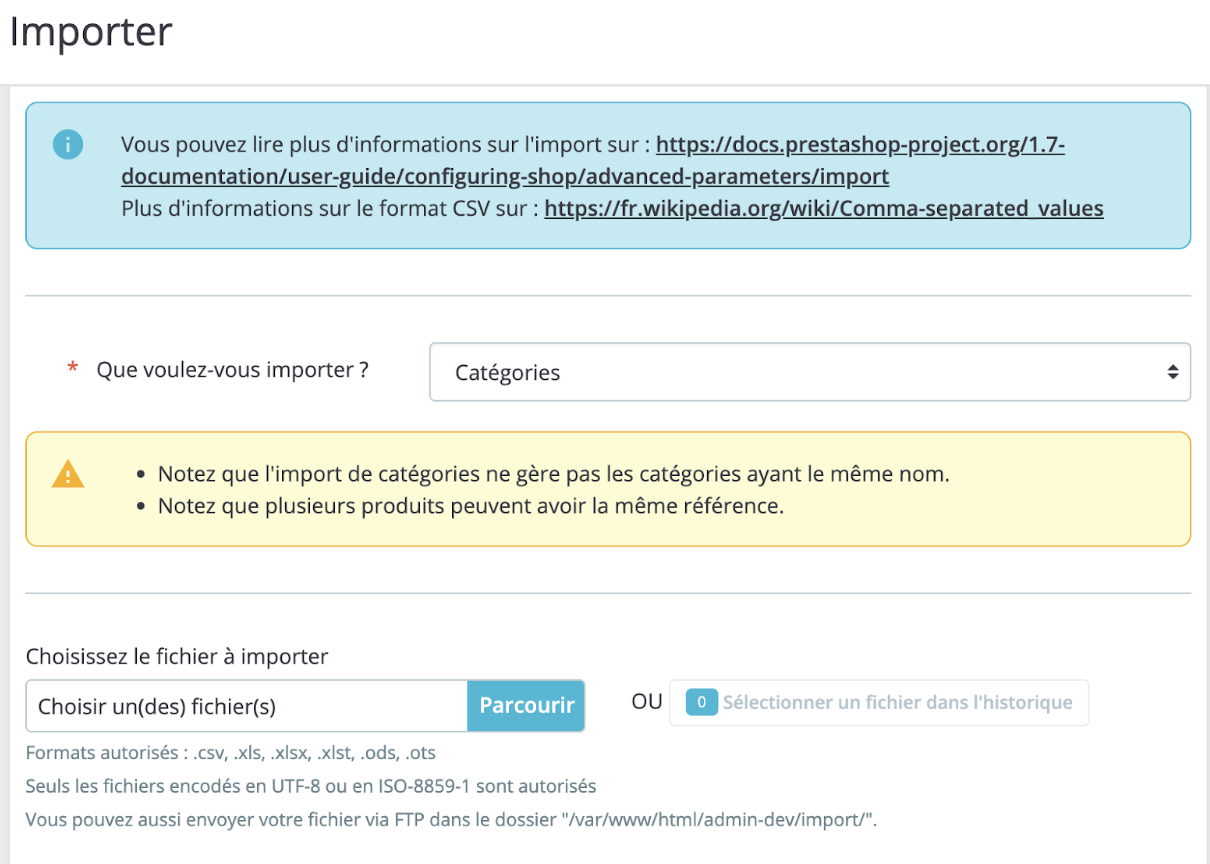
To add files to import, proceed as follows:
- Click on the button "Choose the file to import."
- Select the type of data of your file using the dropdown list titled "What do you want to import?"
- Select the language of the imported content.
- Select the field separators. We suggest that you leave the default values ("field separator" with a semicolon, "multiple value separators" with a comma).
- Once you have made all your selections, click on "Next Step."
Once you have finished matching your columns, click on the "Import" button at the bottom right of the page so that PrestaShop can initiate the import. When the process is complete, you will be redirected to the main page where a notification should confirm the success of the import.
When you click on the "Next Step" button, the page reloads with the data matching tool. This interface helps you map the data columns of your file with those required by PrestaShop.
|
💡 To test this feature, PrestaShop advises you to conduct tests on a copy of your store locally. Thus, your production shop will not be impacted. |