Do you wish to quickly populate your catalog but have a large number of products to integrate? Discover how to import all your products at once using a .csv file.
To access it: Advanced settings > Import
What is a .csv file?
CSV is the acronym for "Comma-Separated Values." It is a very popular plain text format for anything related to the import, export, or simply the storage of data in a non-proprietary format. Virtually all data manipulation tools recognize the .csv format.
To import your file, it must be prepared in advance! PrestaShop allows you to import the following data:
- Categories
- Products
- Declensions
- Clients
- Addresses
- Suppliers
- Alias
How to import your CSV file?
The procedure for importing your products is the same as the procedure for importing your categories (link when it becomes functional). To import your products, please select your .csv file. You can import more than one file at a time, but ensure that they all contain the same type of data.
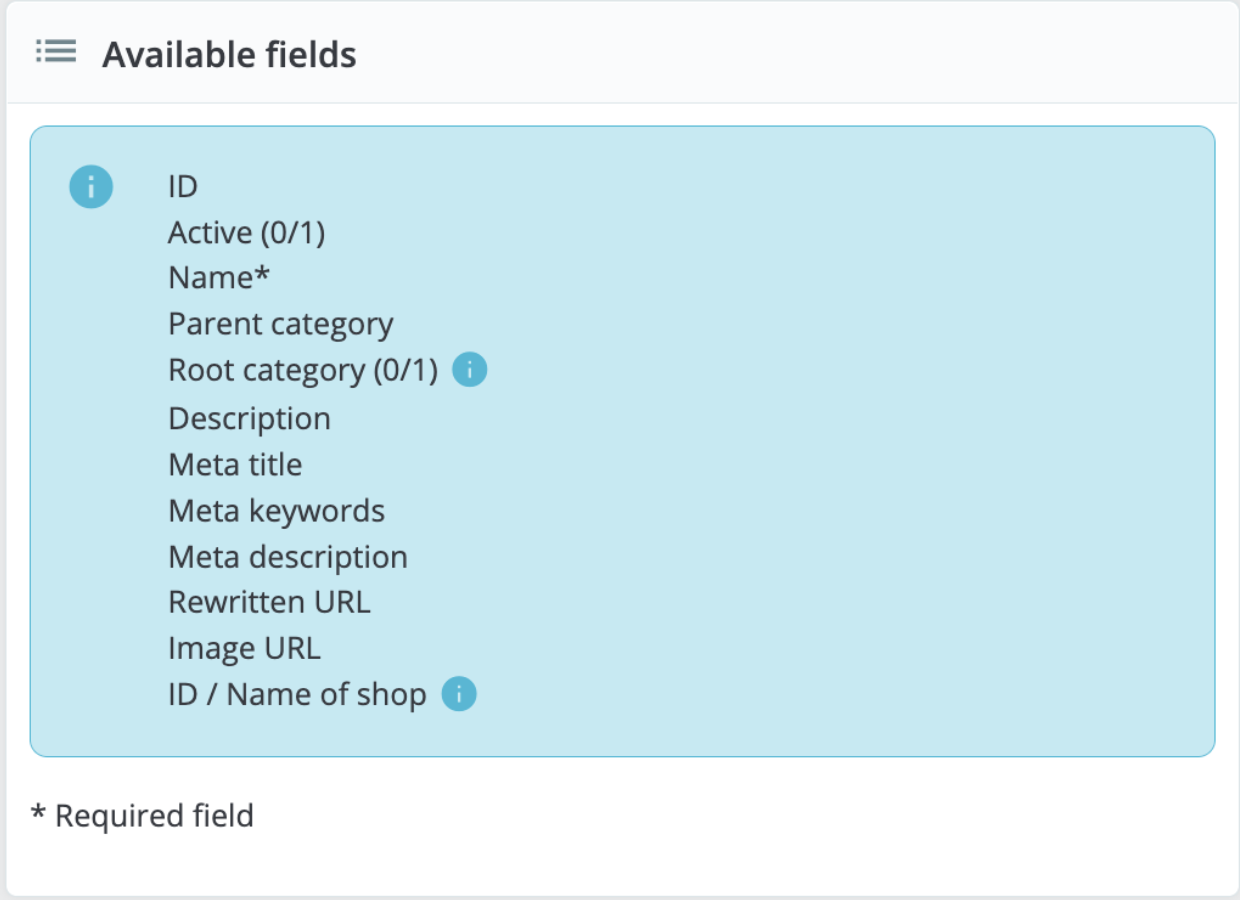
Which fields should be filled during the import?
Some fields have a small information icon that displays a pop-up window when hovered over. They mostly pertain to PrestaShop's multi-store mode or advanced stock management. Read them all carefully before building or modifying your data files.
| ⚠️ The import overwrites the filled fields if the ID of the imported item is similar. |
In the case of importing the fields "Title tag" and "Meta description" for product sheets with the same ID, this will only replace that content. The other fields (name, etc.) will remain unchanged.
- File language: data can only be imported for one file at a time. If your data exists in more than one language, you should split it into as many files.
- Field separator: not all .csv files use a comma as a data separator. Some use tabs, others use semicolons, etc. You can specify what your files use in this field.
- Field separator for multiple values: when an attribute contains more than one value, these values must be separated by a specific separator. After verifying how your files are structured, please indicate the correct separator in this field.
- Delete all (categories, products, etc.) before the import: this option will erase all current entries of the type of data you are importing. This will help you start from scratch. Be careful to delete only the data that you do not need!
- Force all identifiers during import: choose this option only for product imports. You may choose to allow PrestaShop to determine a product's identifier, or use its reference as the identifier. In this case, please ensure that the file indeed contains references for all imported products.
- Use the product reference as the key: select this option only for product import. You may choose to allow PrestaShop to determine the product key or opt to use the product reference as the ID. In this case, please ensure that the file contains a reference for all imported products.
- No regeneration of thumbnails: this function pertains solely to the import of categories and products.
- Force the identifiers: you can either use the imported identifiers or let the importer perform auto-incrementation.
| 💡 The import tool helps you match the information in your .csv file to the fields in PrestaShop. Strive to make your data as easy to import as possible by following the naming format and the order of fields presented. Without this, the import will be laborious but not impossible. |