You have lost the password required to access the back office of your PrestaShop store.
To recover it, the techniques depend on your situation:
- If you still have access to your emails and the login interface: simply click on 'forgot password', and you will receive an email inviting you to reset your password.
- You do not have access to your email address: you may intervene in your database to enter a new email address.
- You do not have access to your back office: it will be necessary to connect to the FTP and intervene in the database of your store to create a new password.
Here is how to proceed for each of these situations.
1. You have access to your back office and email address.
Click on the Forgot Password link and enter your email.
You will receive an email with a reset link that will allow us to create a new password to access your back office.
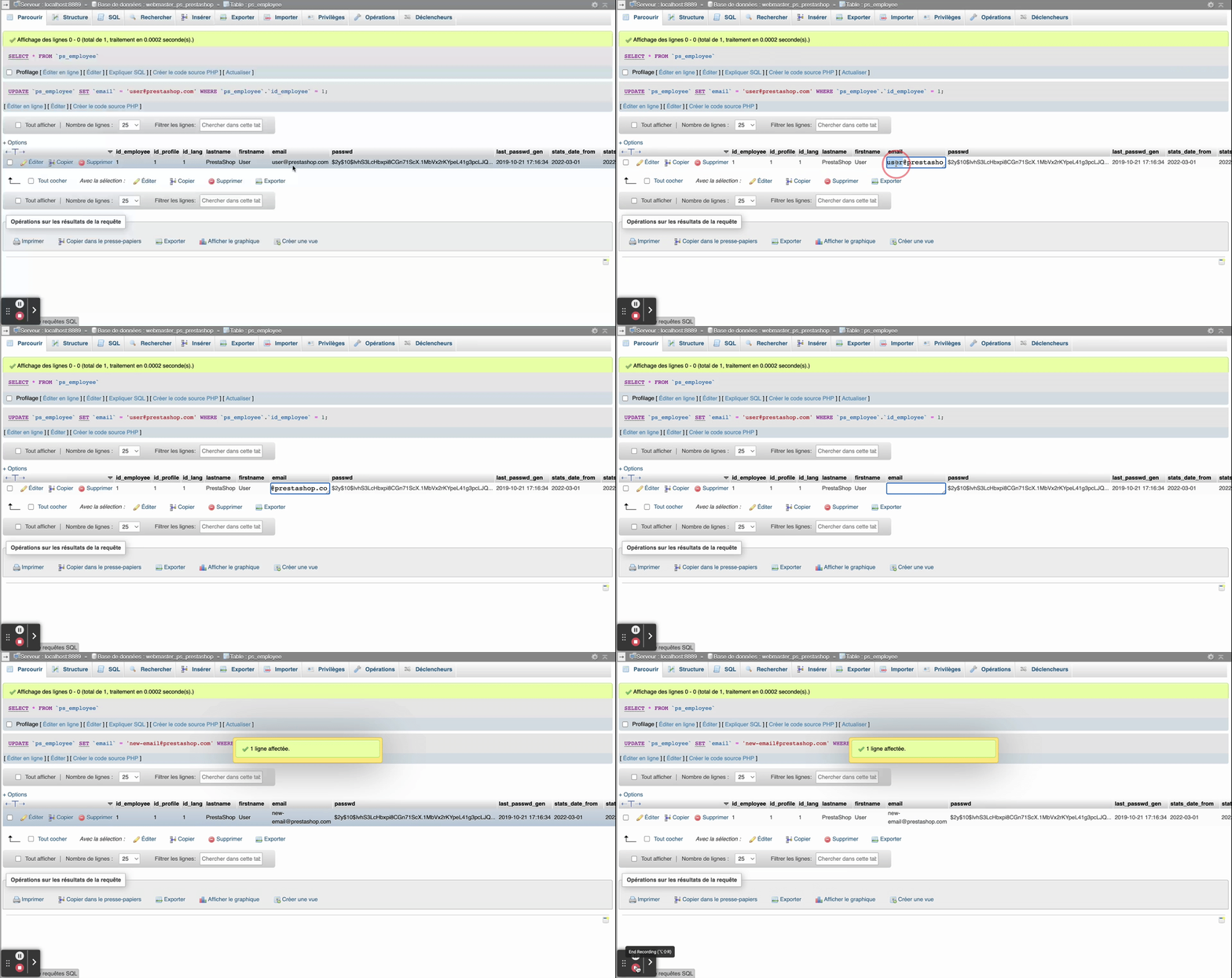
You do not have access to your email address.
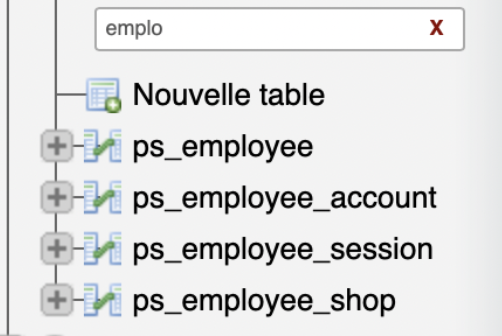
- Log in to your store's database (see the article Connecting to the Database).
- From the table ps_employee, select a row where id_profile = 1 (1 corresponds to SuperAdmin)
-
Edit the row where id_profile = 1

- Modify the email
- Change the save option to "Insert as a new row without overwriting the existing row"
- Click on Execute.
- Go to the login page of your back office, and click on 'forgot password'.
- Reset the password from your email.
You do not have access to your back office.
Here is how to proceed in three steps:
- Find the encryption key
- Set a new password
- Apply this password to the database
Find the encryption key.
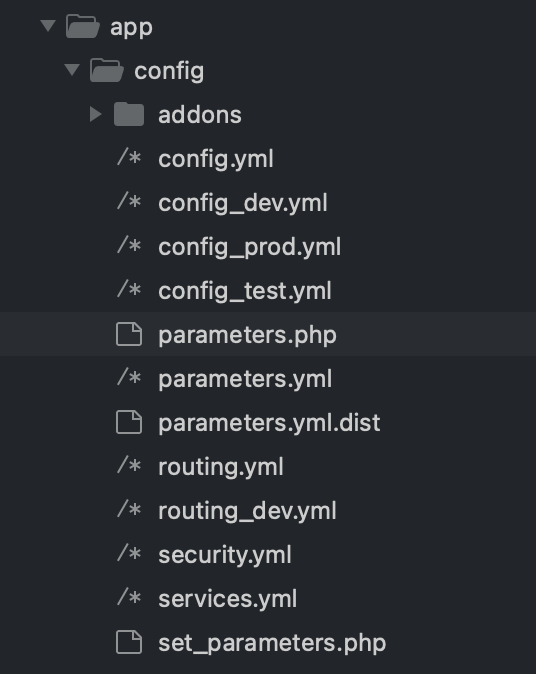
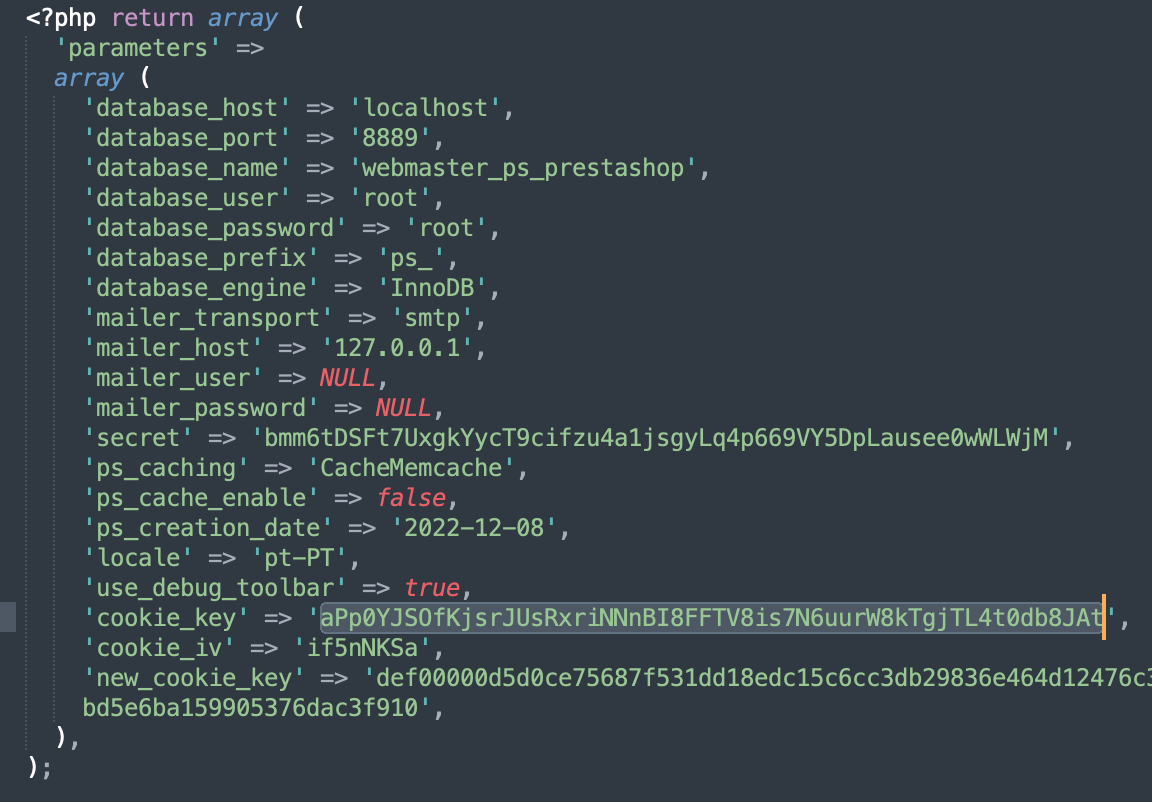
The first step is to look for the encryption key that protects the passwords in your shop files. Go to your FTP, then into the "config" folder and find the file "/config/setting.inc.php" (version 1.6 of PrestaShop) or "/app/config/parameters.php" (versions 1.7 and 8 of PrestaShop).
The encryption key, referred to here as the cookie key, can be found there in the form of a sequence of numbers and letters. Copy it into a simple text file.
| ⚠️ Attention, this key is also used to secure the passwords of all accounts created on your PrestaShop site, so it is very important not to modify it in order to avoid disrupting the functioning of these passwords. |
Set a new password
You can now choose a new password, preferably secure and generated by a password manager.
Still in your text file, you can copy this password immediately after the cookie key, without any space between the two.
Apply the password to the database.
For this step, log in to your database using a MySQL management tool (such as phpMyAdmin, for example).
One last operation: enter the following query, adapting the elements in uppercase to your data, particularly your cookie key and your new password in the "passwd" field.
UPDATE `VOTREPREFIXE_employee`
SET `passwd` = MD5('COOKIE-KEY+NOUVEAU-MOT-DE-PASSE')
WHERE `VOTREPREFIXE_employee `.`email` = ‘ADRESSEMAILDEVOTRECOMPTEADMIN’;
You can now log in to your back office using this new password!
Frequently Asked Questions
The procedure is too complex; who can assist me?
You may contact PrestaShop support, and our teams will offer you assistance.
And what if I no longer remember which email address serves as my login?
You can edit the login email in your database.