PrestaShop allows you to customize the menu of your store. Discover how!
To access it: Modules > Module Managers > Main Menu
What is the menu?
The navigation menu allows access to the main content of a website through a set of links redirecting to the various pages of the website. On an online store, it is generally accessible at the top of the homepage and mentions the product categories.
Where to customize the menu of your store?
In the back office of your PrestaShop store, it is accessible from an included module titled "Main Menu," which can be found on the Modules > Module Manager page. Once the module is located in the list, click on "Configure" to access the configuration page.
How to configure the menu?
Here is what the menu configuration panel looks like:
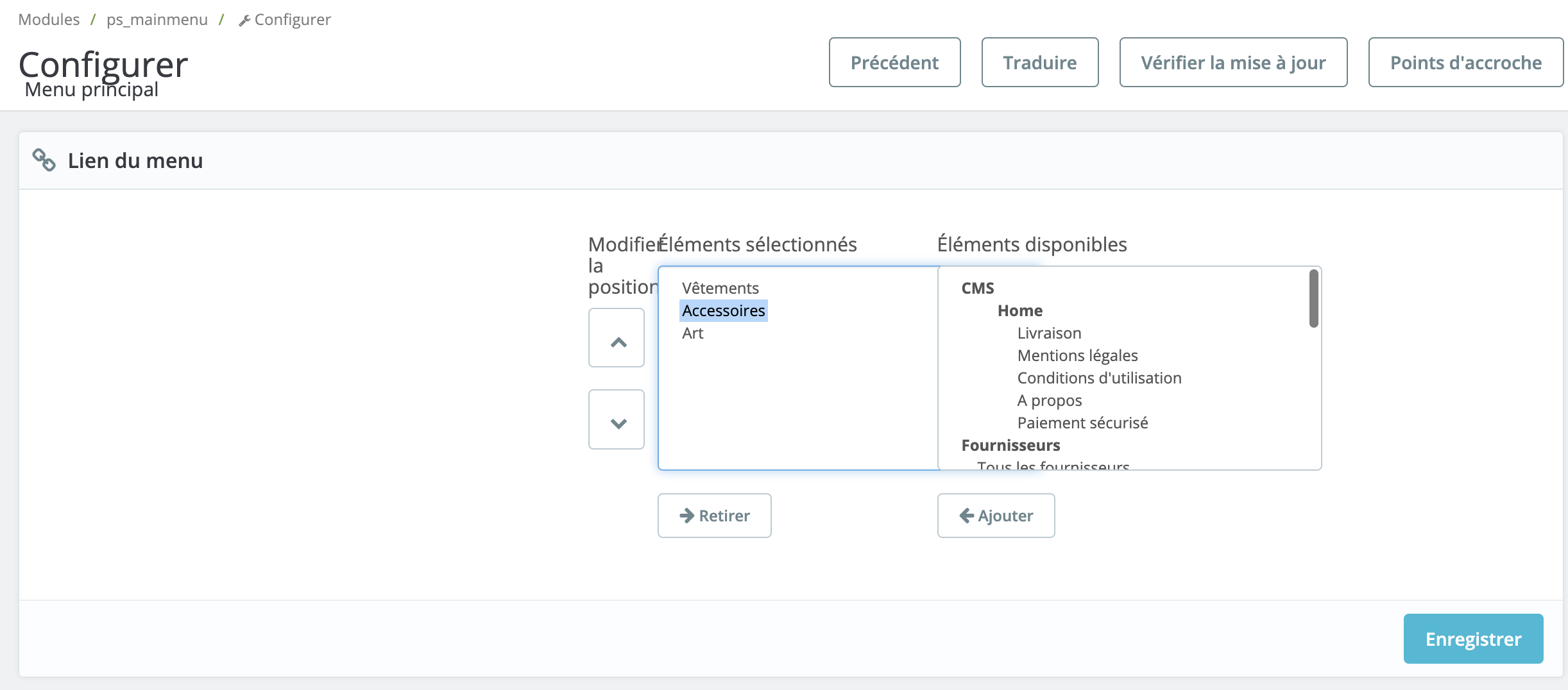
The selected items are the items that appear in your menu.
The available items are the items that you can choose to include in your menu: delivery, categories, products, etc.
To add an item to your menu, select it from the list of available items and click on "Add." Do the same for all the pages you wish to add. Child categories are automatically added to the menu. It is unnecessary to add them again, unless you want them to appear in the menu bar.
| 💡 To rearrange the display order, you can select an item in the left block and move it up or down using the arrows. |
How to add links to internal pages?
You can also add links to pages on your site that are not included in the proposed list. The contact page, for example.
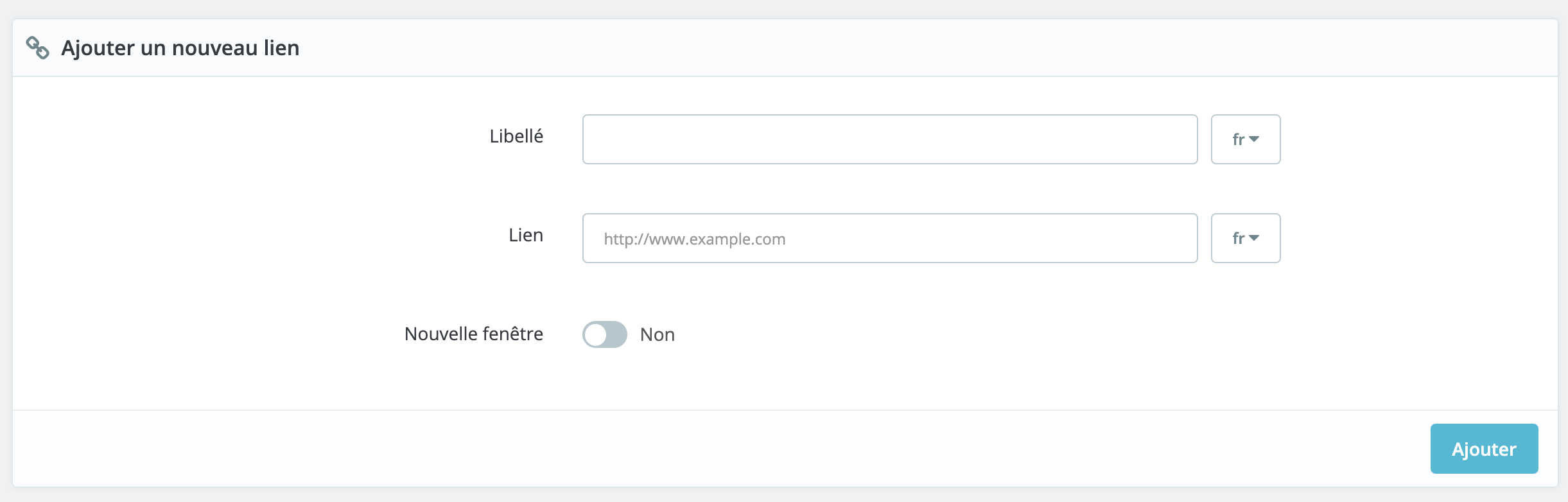
To do this, nothing could be simpler: in the "Add a new link" box, displayed below the "Menu link" box, add the link to the page you wish to integrate.
In the "Label" field, enter the name you wish to give to this page in your menu.
Activate "New window" if you wish for the link to open in a new window.
| 💡 It is recommended to select "New window" in the case where your link is an external link. If your link points to a page of your store, you may keep the opening in the same browsing window. |
Click on "Add" to save. Your link now appears in the available items block. Click on it to add it to the list of selected items.
How to add links to external pages?
The procedure is exactly the same as for adding links to internal pages.