A carousel allows your store to have a dynamic appearance by creating a slideshow. Discover how to implement it on your site!
To access it: Modules > Module Manager.
Why add a carousel?
A carousel highlights your products, promotions, or new arrivals. The carousel is positioned at the top of your store and consists of several images. It allows you to optimize your sales.
When you create your store, a carousel is installed by default. To modify it, you must configure the "Carousel" module. To easily find it from the Modules > Module Manager page, enter the word "carousel" in the search field. It will appear in the "Design & Navigation" category.
How to add a carousel?
Once the "Carousel" module is visible, click on the "Configuration" button to be redirected to the module's configuration page.
You can then define the following elements:
- Speed: to set the duration of the transition between two slides.
- Pause on hover: to stop the slides from scrolling when the client places the cursor of their mouse over the carousel.
- Repeat images: to repeat the images indefinitely.
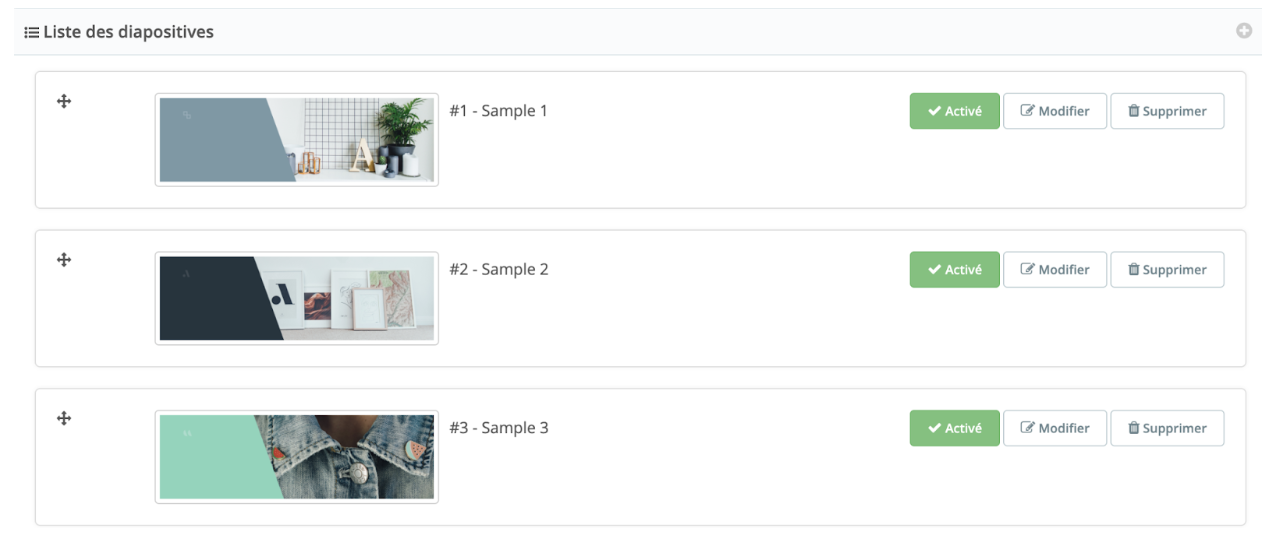
Once the scrolling settings of the carousel are defined, you will find below the list of slides for your carousel. By default, three slides are available.
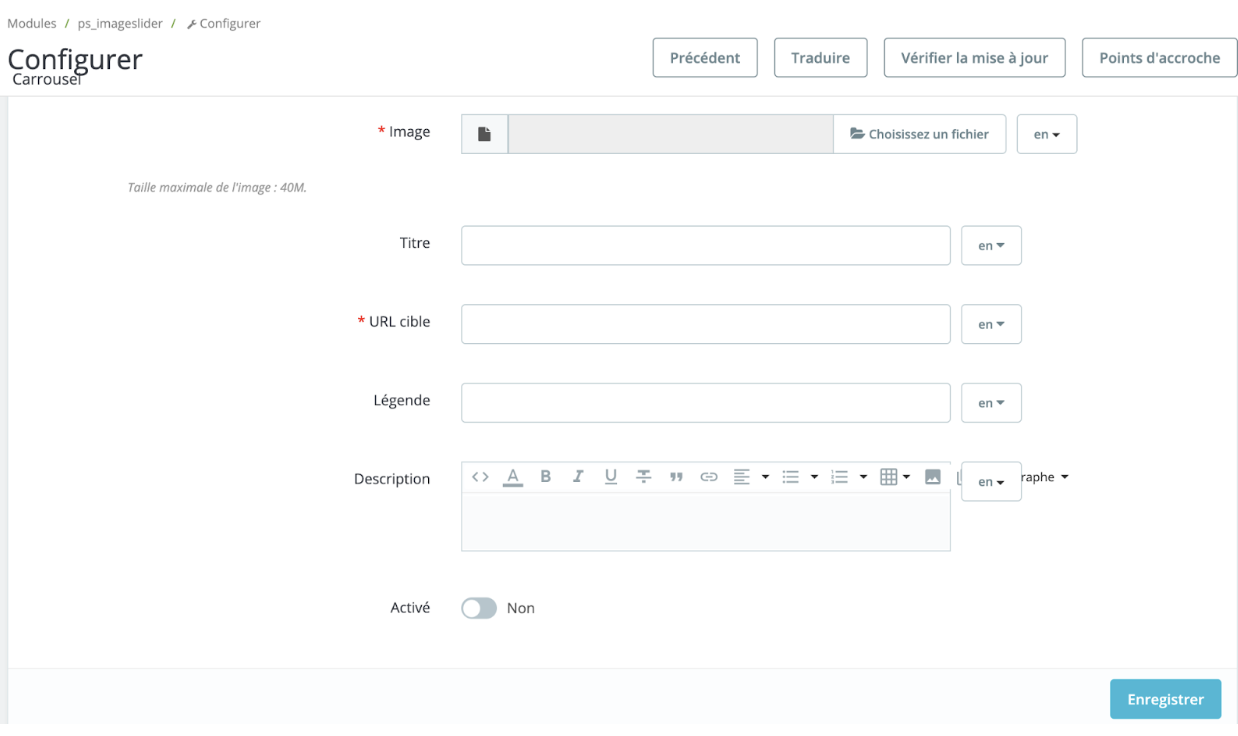
Click on the "Add" button, represented by a "+", to import a new slide. To configure an existing slide, click on "Edit". In both cases, a configuration window will open:
- Add a title for each image and each language; this will enhance your search engine optimization.
- Define the page to which you want to redirect people who click on the slide.
- Write a caption for each image to enhance your SEO - it should ideally consist of keywords.
- Display a description (in the language you have set), it will appear when hovering the mouse over the image.
| 💡 If you have enabled multiple languages, you can keep the same image for all languages or simply change the language in the top right corner to upload a photo for each language. |
Register to have your carousel visible in your store!