PrestaShop offers you the opportunity to monitor your product catalog in order to access detailed statistics about your catalog and to manage your inventory more effectively.
To access it: Statistics > Catalog Evaluation.
Why evaluate your product catalog?
The evaluation of the product catalog is crucial. This feature indeed allows one to know in real time the status of their stocks, to monitor their sales, and to have a clear idea of the success of their products.
How does one evaluate their product catalog?
On PrestaShop, the evaluation of the catalog is carried out by colors and according to standards established by the user.
- The green color indicates that a product is within the upper standard compared to what you have defined.
- The orange color indicates that a product is within the average of what you have defined.
- The red color indicates that a product is within the lower standard of what you have defined.
For example: if you have defined that the optimal size of a description is 400 characters and the description of a product contains only 100, the catalog evaluation will indicate that this description is insufficient.
Which elements of the catalog can be evaluated?
You may define the boundaries for the following elements:
- Descriptions
- Images
- Sales
- Quantity available for sale
How to configure your evaluation?

The 'Catalog Evaluation' menu allows you to set your own catalog evaluation values, that is to say, to customize the minimum and maximum thresholds beyond which you wish to be alerted.
For example, you may consider that two sales per month is an insufficient figure and five sales per month a perfect figure. In this case, refer to the line "Sales" and indicate "2" in the "Insufficient" column as well as "5" in the "Perfect" column.
Once your values are defined, click on "Save" to update the table located just below, which displays the items in your catalog based on the results of your assessment.
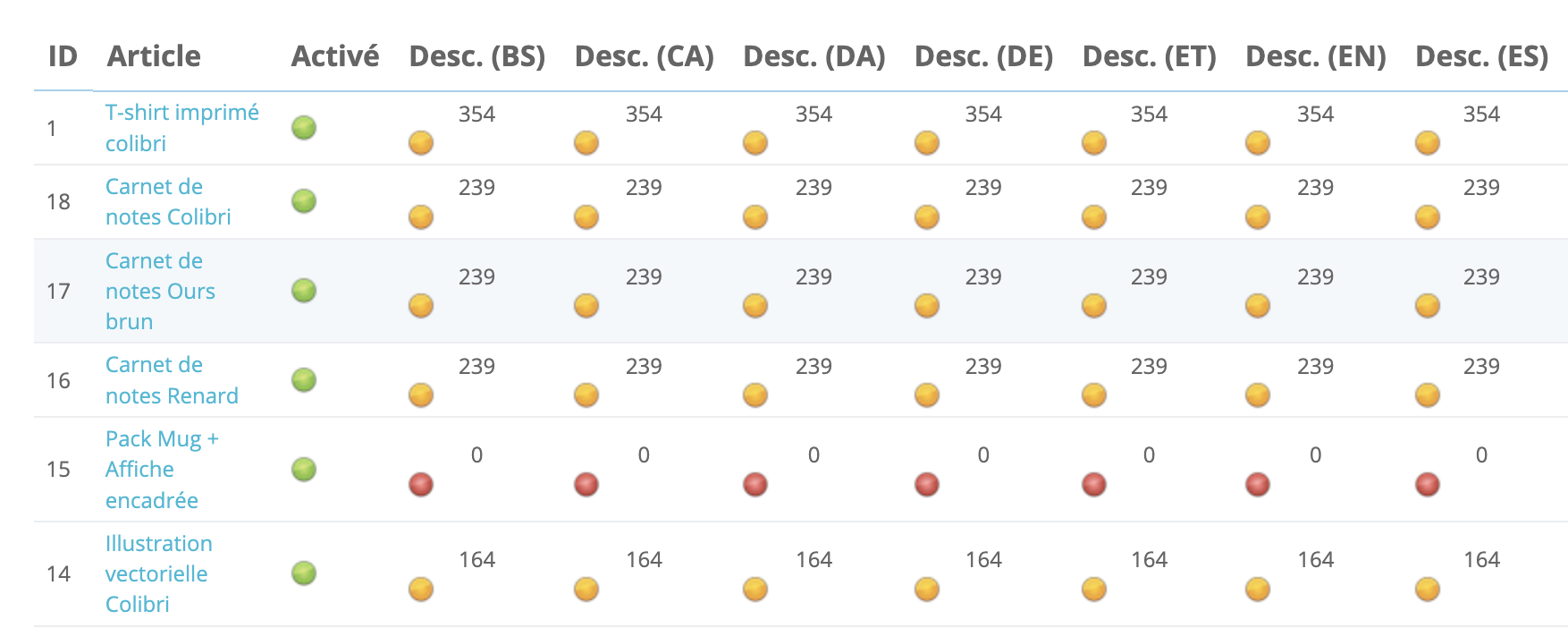
All this information will allow you to prevent stockouts (in the case where a product sells well) and to identify promotions (in the case where a product sells poorly).
To make changes to your evaluation, please click on the link of the relevant product. You will be automatically redirected to its product page, where you will be able to make modifications.
How to identify the issues with your store?
The various tables in the product catalog indicate the items in your catalog where you are encountering a problem. Here are the elements that could be detrimental to your store:
- Empty categories. This table lists the name and the number of categories that do not contain any products. Remove them or add products to them. This will prevent a customer from finding themselves in an empty category while browsing your store.
- List of products with variations and without available quantity for sale. Displays products with variations that are no longer for sale. Take the necessary measures to restock them.
- List of products without variations and without available quantity for sale. Displays products without variations that are no longer for sale. Take the necessary measures to restock them.
- List of disabled products. This table lists the name and number of products that have been withdrawn from sale and are no longer visible to your customers. If you wish for them to be visible, consider activating them; otherwise, remove them from your catalog.
- List of products without images. This list allows you to immediately identify which product sheets, whether published or unpublished, lack images.
| 💡 It is a very useful function when you import your catalog with a CSV file. It may happen that the images are missing from the file, thus you can very easily find your product sheets and complete them. |
- List of products without descriptions. This table displays all the products for which the description is absent.
- List of products without prices. The latter table indicates the products visible on the front office of your store but for which the price has not been provided. It is obviously difficult in this case to make sales.